 Simulacra
Keyboard
Open the sheet of every shortcut, understand where each shortcut works, and move around the window without the mouse.
Most of Simulacra can be driven from the keyboard. The shortcut sheet lists every binding, and the same chords appear next to commands in the palette, the New menu and the sidebar's tooltips.
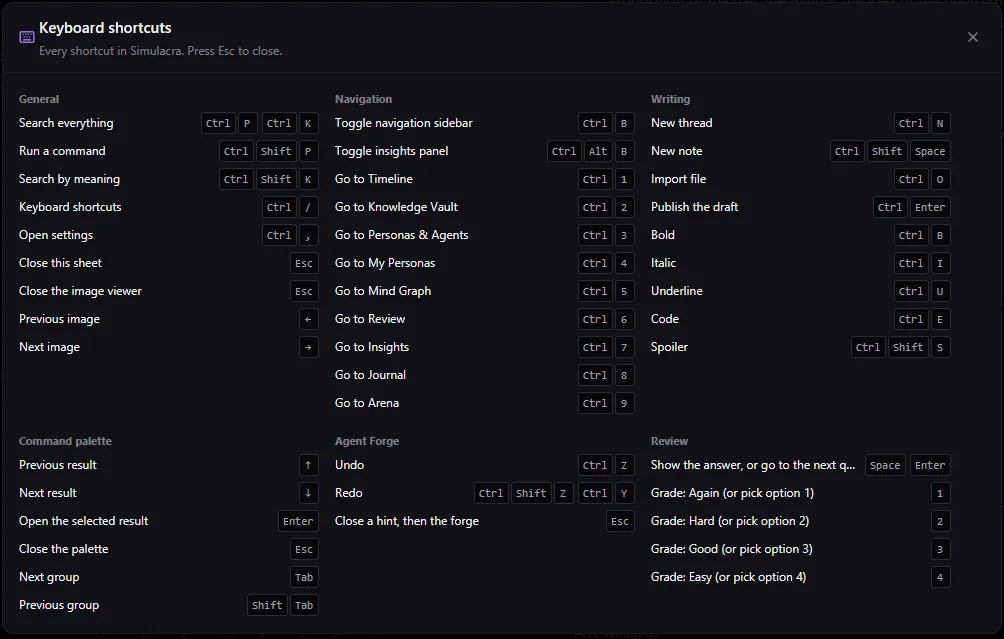
Open the shortcut sheet
| How | |
|---|---|
| Ctrl//⌘/ | From anywhere in the main window. Press it again to close. |
| Keyboard icon | In the left sidebar's footer. |
| Command palette | Keyboard shortcuts. |
| Settings | Settings › Shortcuts, Open shortcut sheet. Settings closes first. |
Close it with Esc, the close button or a click on the dimmed area around it.
Read the sheet
The header says Keyboard shortcuts and Every shortcut in Simulacra. Press Esc to close.. Below it, six sections:
| Section | What is in it |
|---|---|
| General | The palette, the sheet, settings and the image viewer. |
| Navigation | The sidebars and the screens, Ctrl1/⌘1 to Ctrl9/⌘9. |
| Writing | New thread, quick note, import, publishing and text formatting. |
| Command palette | Moving through the palette's results. |
| Agent Forge | Undo, redo and closing the forge. |
| Review | Revealing and grading review cards. |
Each row names the action and shows its keys. When one action has two chords, both are shown, such as CtrlP/⌘P and CtrlK/⌘K for Search everything. The full list is in the keyboard shortcuts reference.
Ctrl on Windows and Linux, ⌘ on macOS
These docs write shortcuts the Windows way. On macOS, Simulacra uses ⌘ wherever Windows and Linux use Ctrl, and shows Alt as ⌥. So CtrlAltB/⌘AltB is ⌘⌥B on a Mac. The sheet always shows the keys of the system you are on.
One exception: the Agent Forge's second redo chord, CtrlY, is Ctrl on every system.
Where a shortcut works
Every shortcut belongs to a scope, the part of the window where it is active:
| Scope | Active | Examples |
|---|---|---|
| Main window | Anywhere in the main window, including while you type | CtrlK/⌘K, CtrlN/⌘N, Ctrl1/⌘1 |
| Text field | While a text field has the cursor | CtrlEnter/⌘Enter, CtrlI/⌘I |
| Agent Forge | While the forge is open | CtrlZ/⌘Z, Esc |
| Command palette | In the palette's search field | ↑, Tab, Esc |
| Shortcut sheet | While the sheet is open | Esc |
| Image viewer | While an image is open full size | ←, →, Esc |
| Review | On a review card waiting to be revealed or graded | Space, 1 to 4 |
When two scopes use the same keys, the inner one wins. CtrlB/⌘B is the clearest case:
- In the composer, CtrlB/⌘B makes the selection bold.
- In any other text field, which has no formatting, the keys pass through and toggle the left sidebar.
- With no text field focused, it toggles the left sidebar.
The same rule lets the palette's arrows, Enter, Tab and Esc work while you type in its field.
Without the mouse
- Focus stays reachable. When nothing has the keyboard, for example after a menu or overlay closes, the window takes it back, so the main-window shortcuts always work.
- The sidebar is keyboard-friendly. Press Tab to move through the places, section headers and items of the left sidebar; Enter or Space opens the one with the focus ring.
- Shortcuts are shown where you need them. Commands in the palette show their chord on the right; the New menu lists one per item; the rail's tooltips name the place and its shortcut; the composer's format buttons say, for example, Bold (Ctrl+B).
Keys not on the sheet
A few keys work in one place only and are not listed on the sheet:
| Keys | Where | What they do |
|---|---|---|
| CtrlV/⌘V | Main window, no text field focused | Paste anywhere: copied files are imported, a copied image becomes an image post, copied text becomes a captured post in your Inbox. |
| Enter, Esc | Quick capture (CtrlShiftSpace/⌘ShiftSpace) | Save to your Inbox; close. |
| ↑ ↓ ← → Enter Home End | The Thread Inspector's outline view | Move, fold, unfold, open, first, last. |
Tips and limits
- Bindings are fixed. There is no editor to change or add shortcuts.
- Ctrl4/⌘4 opens your personas, which live under the Personas & Agents place; it has no row of its own in the sidebar.
- Tasks and Search have no shortcut; open them from the sidebar or the palette.