 Simulacra
The Settings window
How the Settings window is laid out, how every kind of setting row works, how changes are saved, and how to search, reset and navigate it.
Settings holds every preference of the app in sixteen categories, from the interface language to the code runner. Almost every change takes effect and is saved the moment you make it.
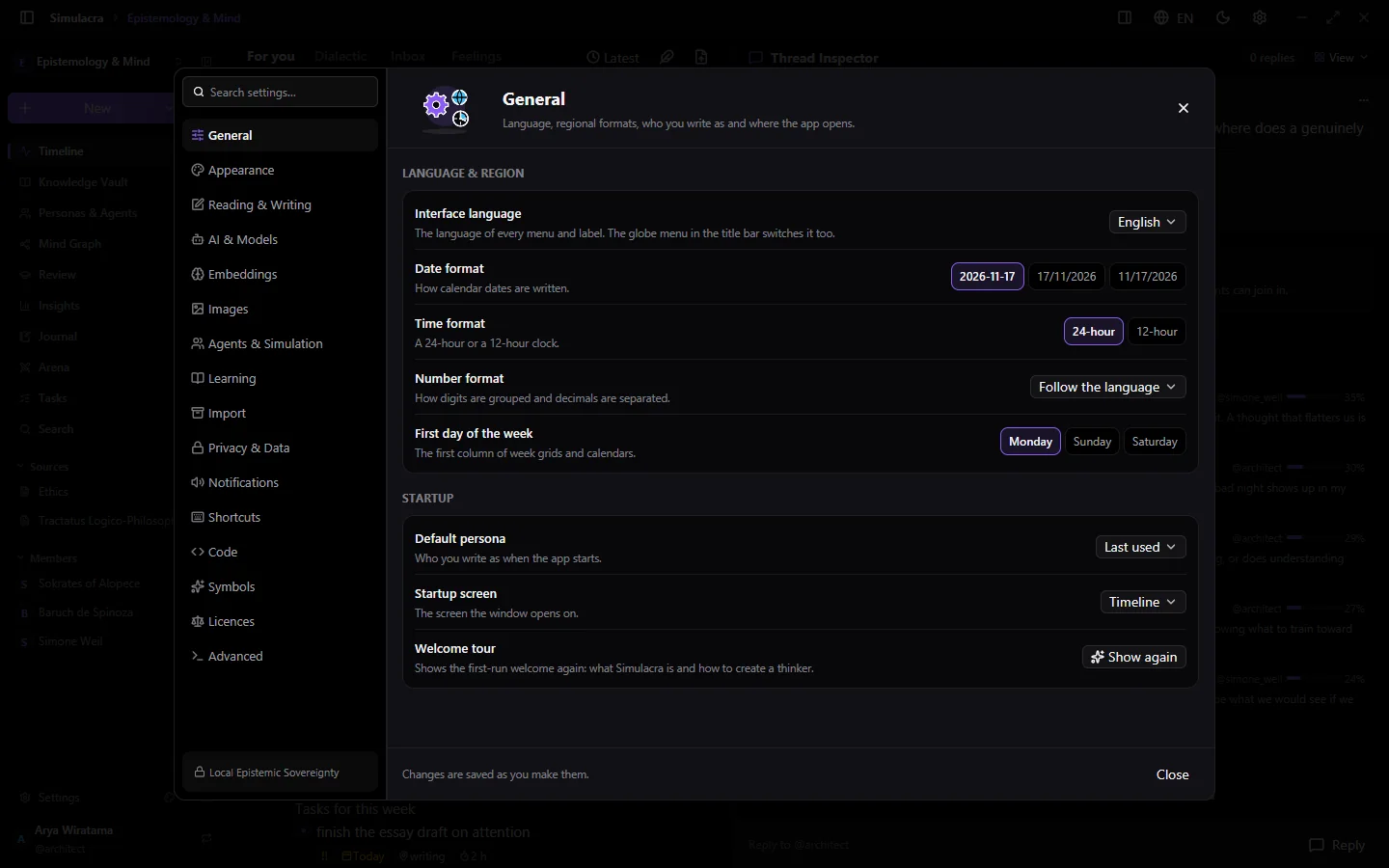
Open it
| From | How |
|---|---|
| Keyboard | Ctrl,/⌘, opens Settings on General. |
| Left sidebar | The Settings row in the sidebar footer, or the gear icon when the sidebar is collapsed to the rail. The palette icon beside it (Appearance) opens the Appearance category. |
| Command palette | Open settings, or Appearance. The palette's Settings group also lists every category by name: type budget, privacy or theme and pick the category. |
Settings takes the keyboard focus when it opens, so Esc closes it straight away. You can also close it with the × in the header (Close (Esc)), Close in the footer, or a click on the dimmed window around it.
Anatomy
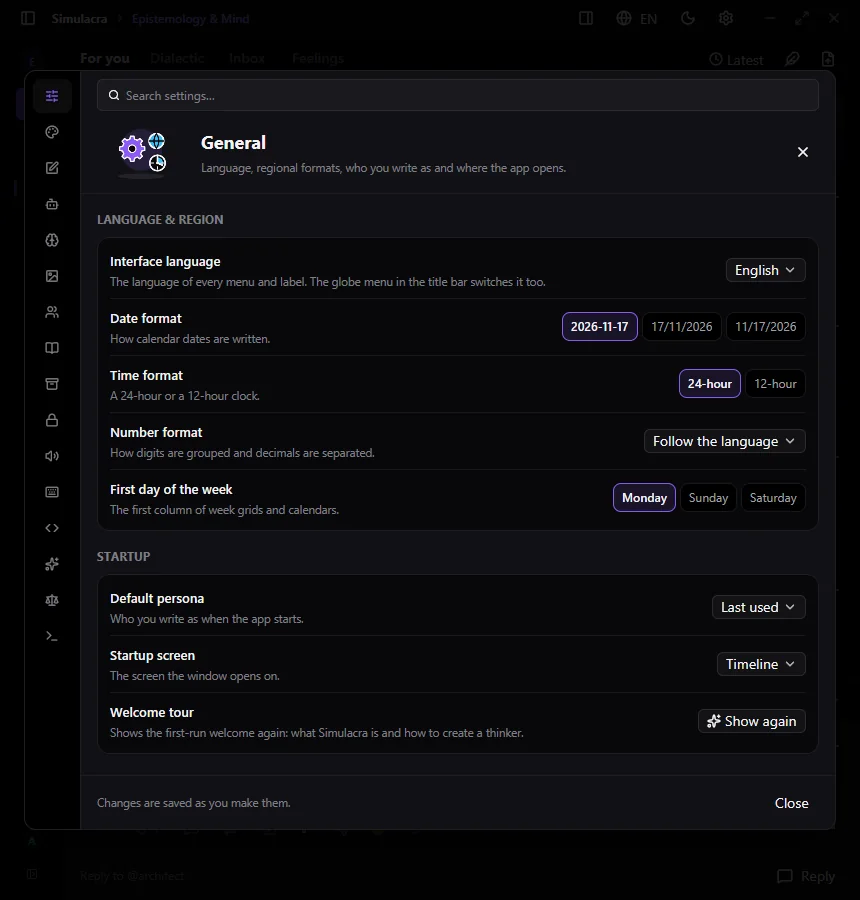
The window is a dialog over the app, sized to fit inside the main window.
- Search box (Search settings…) at the top of the rail.
- Category rail. One button per category with its icon. The active one is highlighted. The rail is resizable: drag the divider, and the width is remembered.
- Rail footer. A lock and Local Epistemic Sovereignty, a reminder that everything stays on this computer.
- Header. The category's illustration, title and one-line description, and the × button.
- Body. The category's cards. Each card has an uppercase title (LANGUAGE & REGION, STARTUP) and a list of rows separated by hairlines. Larger panes, such as the theme gallery or the AI provider grid, sit in the body with their own headings.
- Footer. How changes are saved, Close, and on AI & Models the Save & Apply Settings button.
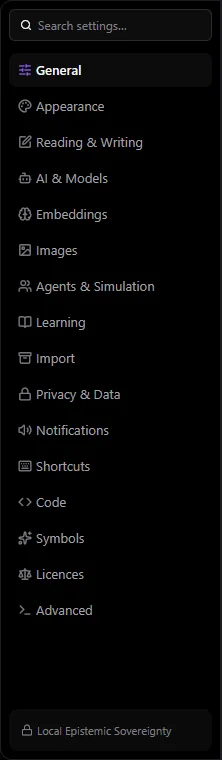
Categories
| Category | What it holds | Page |
|---|---|---|
| General | Interface language, regional formats, default persona, startup screen, welcome tour | General |
| Appearance | Reading width, reduced motion, themes, colours, typography and layout | Appearance |
| Reading & Writing | Post length, archiving, symbol shorthand, drafts, hints, links, daily feed budget | Reading & Writing |
| AI & Models | Provider and default model, credentials, timeouts, retries, daily budget | AI & Models, Credentials |
| Embeddings | Embedding provider and model, chunking, semantic search, the index | Embeddings |
| Images | Default image engine, size, style prefix, avatars | Images |
| Agents & Simulation | Autonomous posting, scheduler status, concurrency, quiet hours, reply depth | Agents & Simulation |
| Learning | Review limits, retention, reminders, the language you are learning | Learning |
| Import | How imported documents are split, who posts them, file size, originals | Import |
| Privacy & Data | Database and media folders, backup, export, snapshots, caches, link previews, journal search, telemetry | Privacy & Data |
| Notifications | Which in-app toasts you see | Notifications |
| Shortcuts | The keyboard shortcut sheet | Shortcuts and Advanced |
| Code | Running code blocks, the time limit, the runtimes found | Code |
| Symbols | Icon sets to download for custom symbols | Icon sets |
| Licences | Who made the icon sets you downloaded | Icon sets |
| Advanced | Log level, developer options, reset all settings | Shortcuts and Advanced |
Every setting is also listed in one table in the settings reference.
How a setting row works
Each row has its title and a short description on the left and its control on the right. In a narrow window the control wraps below the text.

| Control | Used for | How it behaves |
|---|---|---|
| Switch | On/off settings | Click to flip. |
| Chips | Choices of up to three options | The chosen chip is highlighted. |
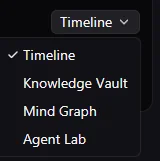
| Menu button | Choices of four or more options | Shows the current option; the menu ticks it. |
| Stepper | Numbers | − and + move one step (the step differs per setting) and are disabled at the ends of the range. The readout carries its unit: 30 s, 2×, 200 / day, 90%. Hours read 22:00. Where 0 means unlimited, 0 reads No limit. |
| Text field | Model names, addresses, the style prefix | Saved as you type. |
| Button | One-off actions | Back up now, Rebuild, Open shortcut sheet and similar. |
| Folder | Where the vault lives | The path in monospace, your home folder written ~ (a long path keeps its end: the folder and the file) and Open folder, whose tooltip shows the whole path. |
| Locked badge | Telemetry | A lock and Always off. It cannot be changed. |

- Reset to default. While a value differs from its default, a small arrow button (Reset to default) appears before the control. Click it to put that one setting back.
- Rows that depend on a switch are dimmed and ignore clicks while the switch is off: Quiet from and Quiet until follow Quiet hours, each Remind me at follows its reminder, Local server address follows the embedding provider, and every toast kind follows Show toasts.
How changes are saved
The footer says Changes are saved as you make them. Every switch, chip, step and keystroke is checked, pulled into its allowed range and written to your vault straight away. There is nothing to confirm.
The one exception is the provider pane of AI & Models: the provider, its API key, the custom endpoint and the default model wait for Save & Apply Settings. On that category the footer reads Provider, key and model changes apply when you save. Once you change one of them, the footer turns to Unsaved provider changes with an amber dot, the same dot appears on AI & Models in the rail, and the save button stays in the footer whichever category you open.

Closing discards provider changes
Closing Settings without Save & Apply Settings puts the provider, key, endpoint and model back as they were saved. Every other setting is already saved.
Search settings
Type in Search settings… to search every category at once.
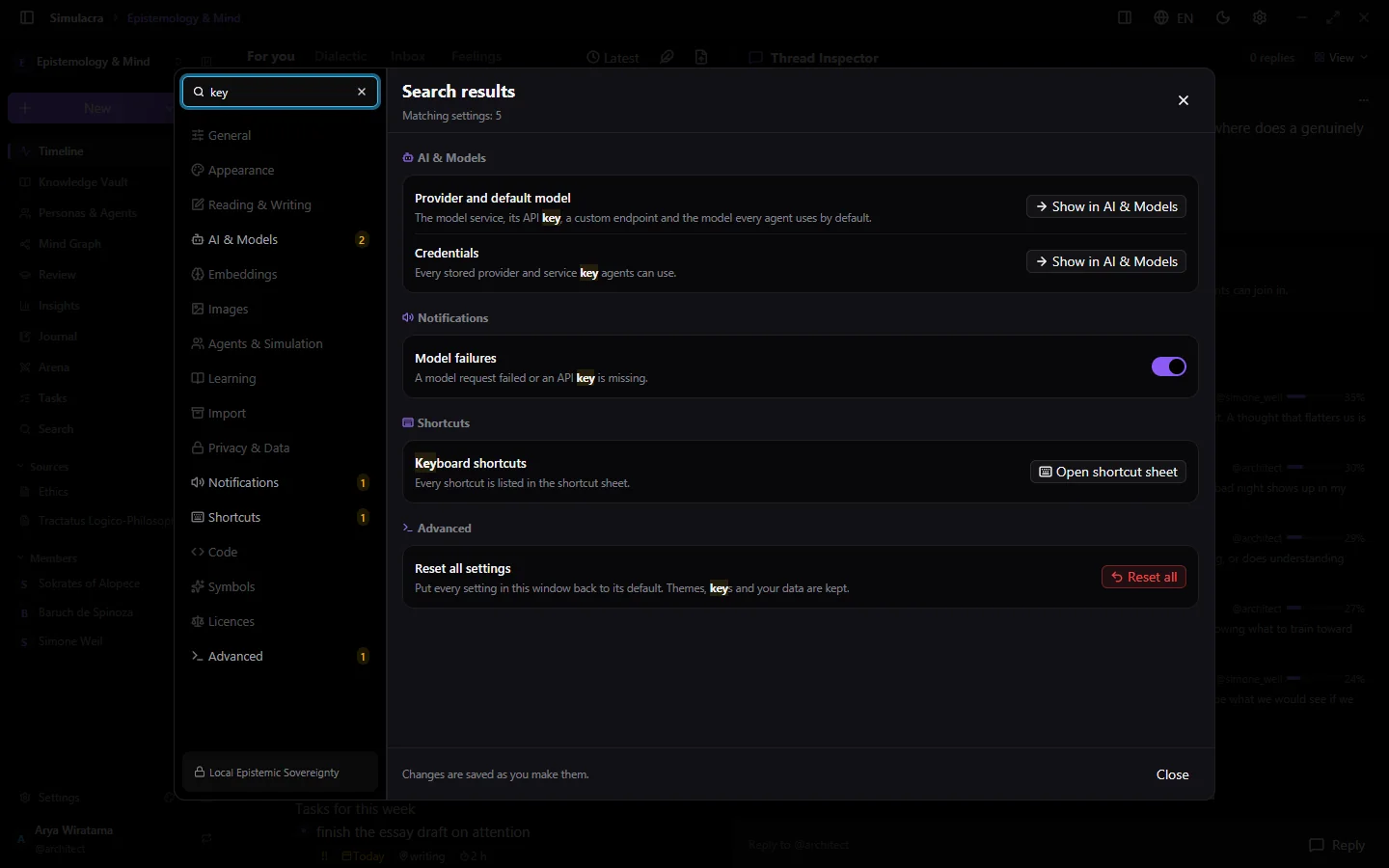
- A row matches when every word you type appears, in any letter case, in its title, its description, its hidden keywords or its category's name.
api key,quietorretentionall work. - The header reads Search results and Matching settings: N. Results are grouped under their category's icon and name, in rail order, with the matched words highlighted.
- Every result is the real control: you can change a setting straight from the results.
- The rail shows a count beside each category with matches and dims the others.
- Density and Font size only appear as search results. They show their current value and Show in Appearance; larger panes (the theme gallery, the credentials list) show Show in … with the category that holds them.
- Clicking a category in the rail clears the search. With no match the body shows No settings match and Try another word, or fewer words.
Keyboard
| Key | Where | What it does |
|---|---|---|
| Ctrl,/⌘, | Anywhere | Opens Settings on General. |
| Esc | Settings | Closes Settings. |
| ↑ / ↓ | Category rail focused | Moves to the previous or next category (wrapping round at the ends). It does not apply while the search box has focus. |
| Tab | Settings | Moves through the categories and controls. |
In a narrow window
When the main window is narrow, the rail shrinks to icons with tooltips, its footer is hidden, and the search box moves to the top of the content column.
Tips and limits
- Saved per vault. Preferences live in your vault, one stored row per category. If one row cannot be read, only that category returns to its defaults. An option the app does not know (written by a newer version) reads as the default.
- Some rows are not used yet. Version 0.2.0 saves a few settings that no screen reads yet, such as the autosave interval. Each category page says which; the settings reference marks them all.
- Reset everything at once with Reset all settings in Advanced. It asks for a second click and keeps your themes, keys and data. See Shortcuts and Advanced.
- Without a vault. If the vault could not be opened, folder and backup actions report This session runs without a vault. See Troubleshooting.