 Simulacra
Import documents
Bring books, PDFs, word-processor files, web pages and data into the vault, and optionally post their passages to the timeline.
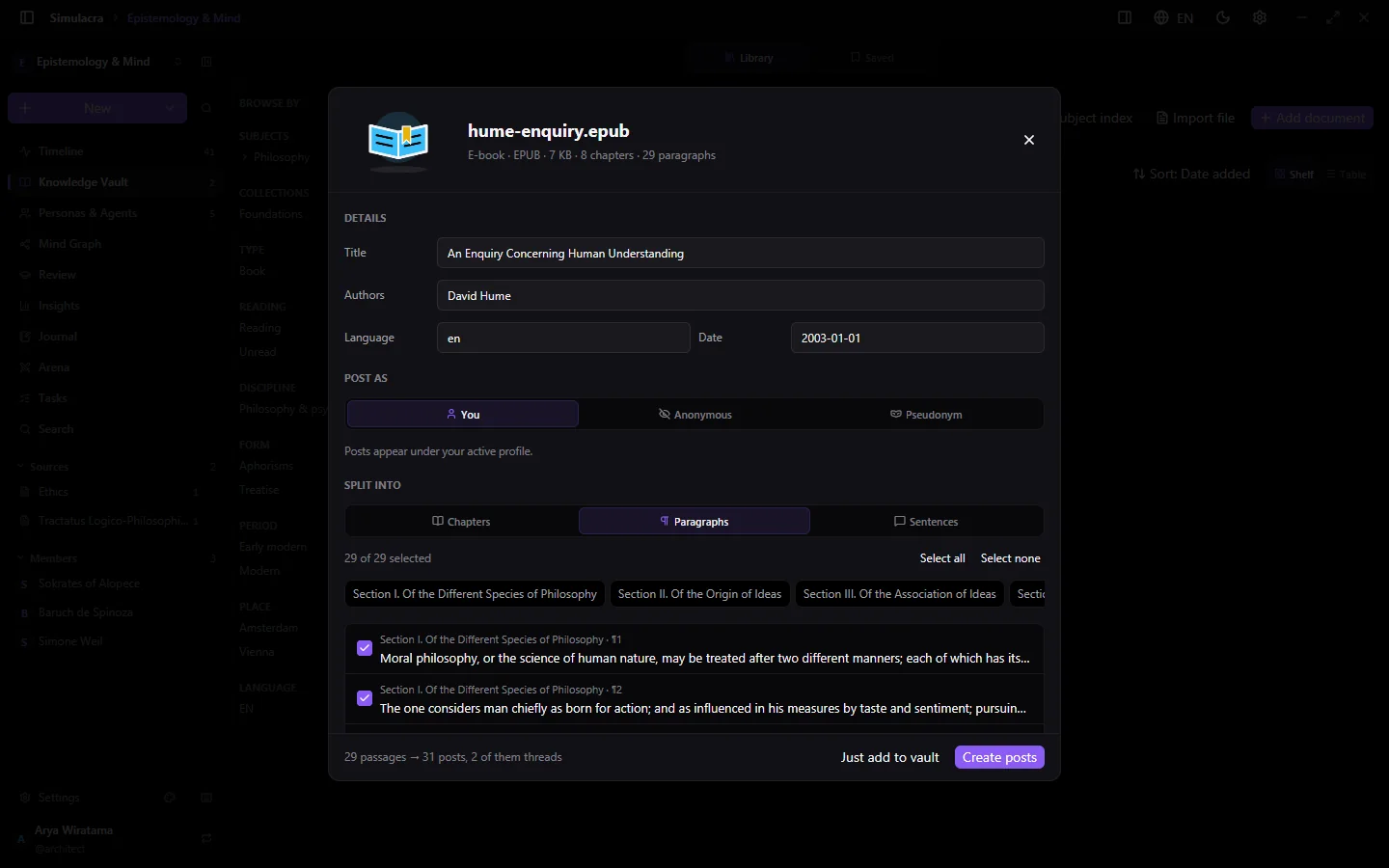
Import turns any file into a vault document. Simulacra reads the file on your computer, recognises its format, fills in what it can of the catalogue record, and shows the import sheet, where you check the details and decide whether its passages also become posts.
Ways to import
| Way | How |
|---|---|
| Import file | The vault header (or the empty vault), the left sidebar's New menu, the button beside the timeline tabs, and the command palette. Opens the system file picker titled Import files; you can pick several files. |
| CtrlO/⌘O | The same picker, from anywhere. |
| Add Document | The right sidebar's Vault & Telemetry tab. Opens the same picker. |
| Drop files | Drag files from your file manager anywhere onto the window. |
| Paste files | Copy files in your file manager, then press CtrlV/⌘V while no text field has focus. |
| Command line | Start Simulacra with file names: simulacra book.epub. |
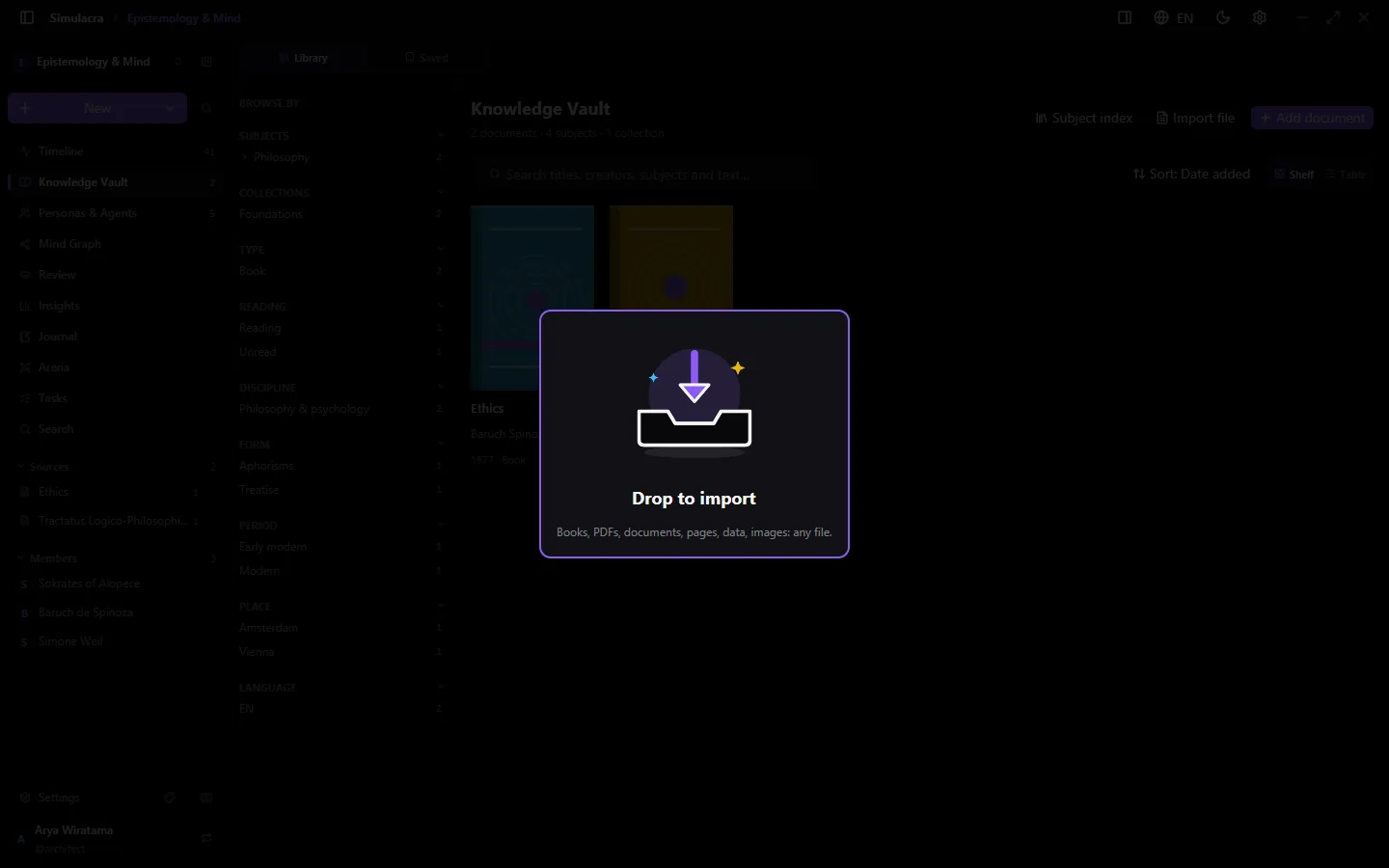
While you drag files over the window, the card Drop to import appears. If the post composer is open, it takes the dropped files as attachments instead.
Several files open one after another: the next file's sheet opens when you finish or close the current one.
Import a file
Wait for it to be read
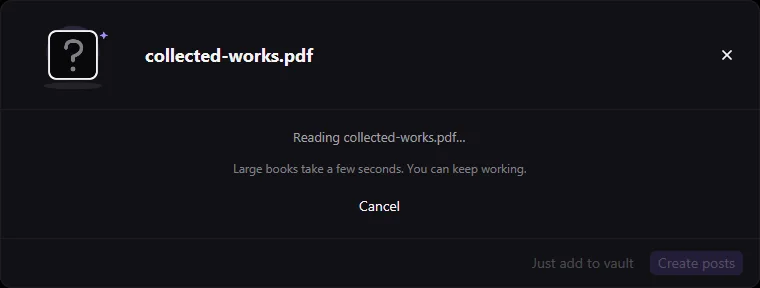
The sheet opens at once and reads the file in the background: Reading book.epub…. Large books take a few seconds, and you can keep working. Cancel stops the read and closes the sheet.
Check what was found

The header shows a card for the format family, the file name, and a line of facts: family, format, size, the number of chapters (when there are several) and paragraphs. Notes from the reader appear below in the warning colour, such as 12 pages have no text layer (scanned pages) and were skipped. See Import formats for every note.
Correct the details
Under DETAILS, the fields are filled from the file:
| Field | Filled from | Notes |
|---|---|---|
| Title | The file's own title, else the file name | Underscores and hyphens of a file name become spaces. |
| Authors | The file's creators | Names separated by commas. |
| Language | The file's language tag | For example en or de. It also chooses the rules for splitting sentences. |
| Date | The file's date | A year or a date. |
Publisher, description and identifiers the file carries are kept too, though the sheet does not show them. A date, language or identifier the catalogue cannot read is left out of the record rather than blocking the import. You can complete the record later with Edit on the entry.
Finish: vault only, or posts too

- Just add to vault stores the document and nothing else. A notice says Added “Title” to the vault.
- Create posts stores the document and publishes the selected passages as posts (below). A notice says Imported “Title” as 1012 posts. and the timeline opens on For you.
The new document goes to the top of the vault, catalogued with type, creators, date, publisher, language, identifier and abstract from the file, and Imported with the file name as its source.
Turn passages into posts
The lower half of the sheet chooses what becomes posts and who posts them. Nothing is posted unless you click Create posts.
Split into

| Choice | One passage per | Example position |
|---|---|---|
| Chapters | Chapter, its paragraphs joined | "Section II" |
| Paragraphs | Paragraph (the default) | "Section II · ¶12" |
| Sentences | Sentence | "Section II · ¶12 · sentence 2" |
Headings never become passages. The default comes from Settings › Import › Split documents by. Changing the split selects every passage again.
Choose passages
- The count reads "980 of 980 selected". Select all and Select none do what they say.
- When the file has more than one chapter with text, a row of chapter chips appears; a chip selects exactly that chapter's passages. Chapters without a title read "Chapter 3".
- Each row of the list shows the passage's position and its first line (line breaks shown as " / "). Click a row to select or clear it.
Post as

| Choice | Posts appear under |
|---|---|
| You | Your active profile. |
| Anonymous | One shared anonymous account. |
| Pseudonym | A pen name typed in the field that appears. A name you used before is reused. |
The default comes from Settings › Import › Post imports as.
What gets posted
- Each selected passage becomes a post. A passage longer than your post length limit (Settings › Reading & Writing › Post length limit) becomes a thread of several posts.
- Every post cites the new document with a source chip naming the place it came from, such as "Ethics · Part I: Of God · ¶3" (chapters without a title read "§2"). The document's entry counts them as posts linking here.
- Posts keep the reading order of the file.
- The footer sums it up before you commit: "980 passages → 1012 posts, 28 of them threads". With nothing selected it reads Nothing selected: the file only goes into the vault.
Create posts stays disabled until at least one passage is selected and, for a pseudonym, a name is typed.
Files without text
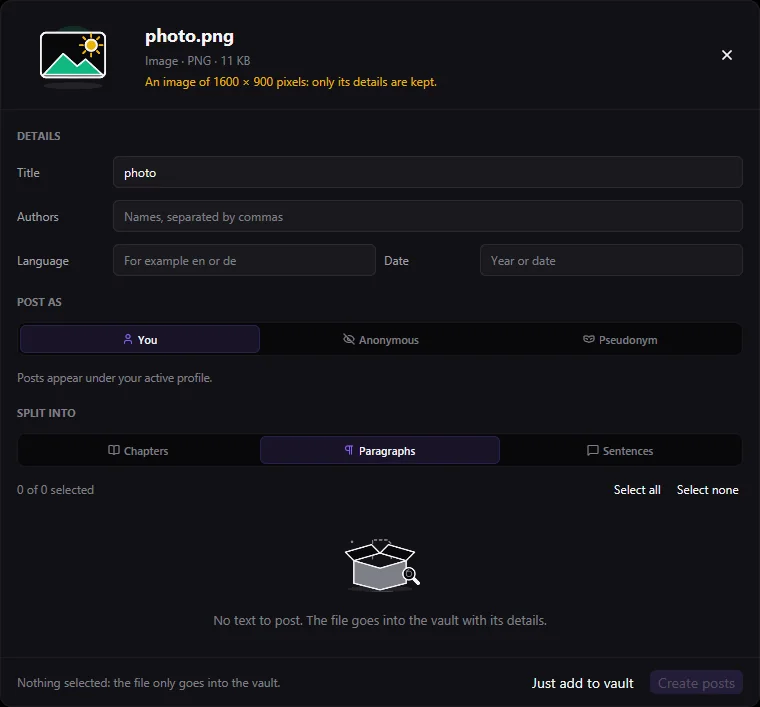
Images, audio and video have no text to post. The sheet says No text to post. The file goes into the vault with its details., and Just add to vault stores a Media document whose text is a one-line description of the file (title, format, media type, size and checksum). Archives list their file names; unrecognised files keep the readable text found inside them. See Import formats.
Keep the original file
With Settings › Import › Keep the original file on (the default), a copy of the source file is stored in the imports folder of your media folder, named by its checksum, so the same file is stored once. If the copy fails, a warning says The original file was not kept: reason and the import goes ahead.
When a file cannot be opened

| Message | Cause | What to do |
|---|---|---|
| Could not open this file: "the file is 80.0 MB, larger than the 50.0 MB import limit" | The file is over Settings › Import › Largest file (50 MB unless changed). It is refused before being read. | Raise the limit (1 to 1024 MB) or split the file. |
| Could not open this file: followed by a system message | The file could not be read (moved, locked or not permitted). | Check the file and try again. |
| The import failed: reason | Storing the document or posts failed. | Try again; see Troubleshooting. |
A file that is damaged, encrypted or in an unsupported variant of its format is not refused: it opens as an unrecognised file, with a note saying why, so it still enters the vault with its details.
Import settings
| Setting (Settings › Import) | What it does | Default |
|---|---|---|
| Split documents by | The split the sheet opens with: Paragraph, Sentence or Chapter | Paragraph |
| Post imports as | Who the sheet posts as | You |
| Largest file | Bigger files are refused before reading | 50 MB |
| Keep the original file | Store a copy of the source file | On |
Tips and limits
- Clicking outside the sheet closes it, discarding what you set. Use Close (the cross) for the same.
- Importing the same file twice makes two documents; the Checksum row of their records shows they hold the same text.
- A Markdown thread you exported comes back with its formatting, and an exported locked post stays sealed.
- Imported posts are ordinary posts: edit, archive or delete them like any other.
Related
- Import formats: every format and what is read from it.
- Ground a network in a book: an import from start to finish.
- Documents: editing the record after import.