 Simulacra
Learn posts and passages
Add a question or an answer to any post, or learn sentences and paragraphs of a vault document.
Nothing in Review is a free-floating flashcard. You pick a source, a post or a passage of a vault document, and write the other face yourself: a question the source answers, or the answer the source prompts. The review then always shows the source itself, never a copy.
Question or answer
| You choose | The source is | You write | In a review you see |
|---|---|---|---|
| Add question | the answer | Your question | your question, then recall the post |
| Add answer | the prompt | Your answer | the post, then recall your answer |
Use Add question when the post says something you want to be able to produce; use Add answer when the post asks or names something and you want to remember your response to it. Write in your own words: rephrasing is itself a step of learning.
Ways in
| From | Do this |
|---|---|
| A post in the stream | Open its … menu › Learn › Add question or Add answer. |
| The thought open in the inspector | Run Learn the open thought in the command palette. With no thought open, it opens the post picker. |
| The Review page | Click Pick posts to learn in the header, then Add question or Add answer on a post. |
| A vault entry | Open the entry in the Knowledge Vault and click Learn passages under its title. |
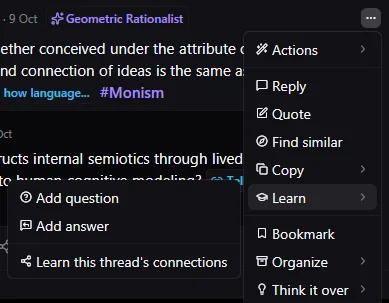
The Learn submenu
| Item | Shown when | What it does |
|---|---|---|
| Add question | the post is not being learnt | Opens the learn sheet with the post as the answer. |
| Add answer | the post is not being learnt | Opens the learn sheet with the post as the prompt. |
| Edit review | the post is being learnt | Opens its item in the learn sheet. |
| Stop learning | the post is being learnt | Removes the item at once; a toast confirms that its past answers stay in the statistics. |
| Learn this thread's connections | always | Seeds a connection map from the post's thread. |
A post keeps one item. Asking to learn a post that already has one opens that item for editing.
The learning indicator

| Chip | Meaning |
|---|---|
| New | Not reviewed yet |
| Due | Due today or overdue |
| "In N d" | Due in N days |
| Paused | Suspended under Items |
The learn sheet
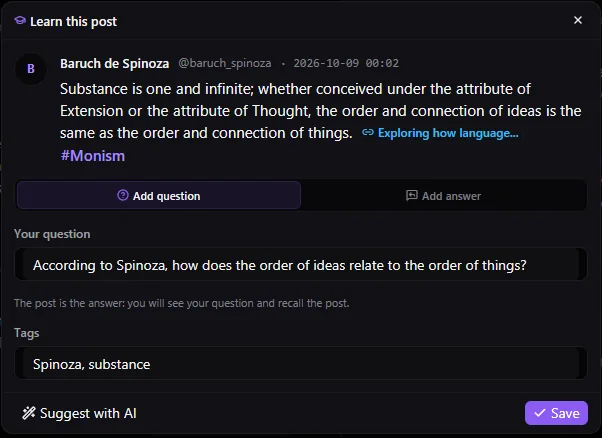
The sheet opens over the page with a scrim. Its title says what you are doing: Learn this post, Learn passages or Edit review.
- The source, drawn exactly as the stream shows it (avatar, name, handle, time and body), or the chosen passage as a quote with the document's title and place ("Chapter 1 · ¶ 3 · sentence 2").
- The switch Add question / Add answer decides which face the source is. The tip under the field restates it, naming a passage as "the passage".
- Your question or Your answer: "Write it in your own words".
- Tags: comma separated, for example
ethics, Spinoza. A leading#is dropped and repeats are removed. Tags show on the item and help multiple choice find plausible wrong answers. - The footer: Suggest with AI, its status line, Add another passage (documents only) and Save.
Close the sheet with its close button (Close), Esc, or a click on the scrim. Nothing is saved until you click Save; a toast then says how many items were saved.
Suggest with AI
Suggest with AI asks your configured AI engine for the face you are writing: one question about the source's main idea, or the short answer a learner should recall. The text sent is the post (or the chosen passage), cut to 4,000 characters, and the reply is asked for in your interface language.
| Status | Meaning |
|---|---|
| Writing a suggestion… | The request is on its way; the button is disabled. |
| Suggestion added. Edit it before saving. | The suggestion is in the field. It is never saved on its own. |
| Add an AI key in Settings › AI & Models to get suggestions. | No key is set. |
| The AI's reply could not be read. Try again. / The AI did not suggest anything usable. | The reply was unusable. |
Learn passages of a document
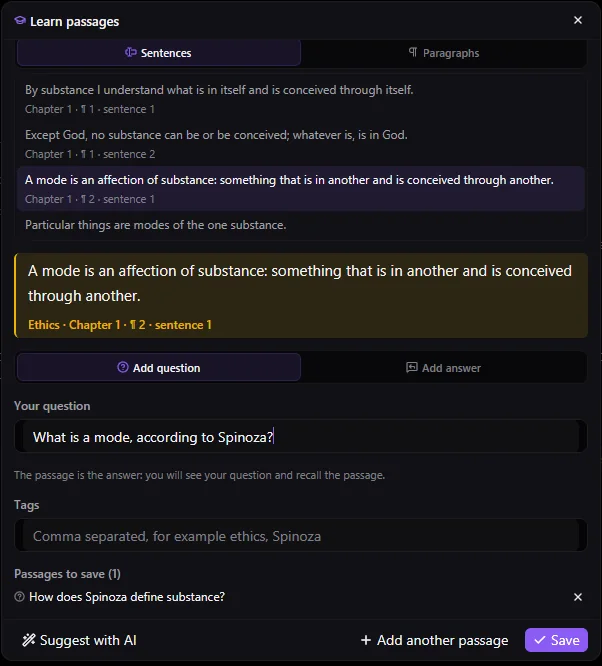
Open the document's passages
In the vault, open an entry and click Learn passages. The sheet lists the document's prose: headings are dropped, quote and list markers removed.
Pick a passage
Choose Sentences or Paragraphs, then click a passage under "Pick a passage of …". Up to 400 of each are offered. The chosen passage appears as a quote at the top.
Write its question or answer
Set the switch and write the other face, with tags if you like.
Add more, then save
Add another passage moves the passage to Passages to save (N) and clears the field for the next one. Remove one with its Remove button. Save saves the list, plus the fields when they hold something.
A passage is kept as it was quoted when you picked it, with its place in the document.
The post picker
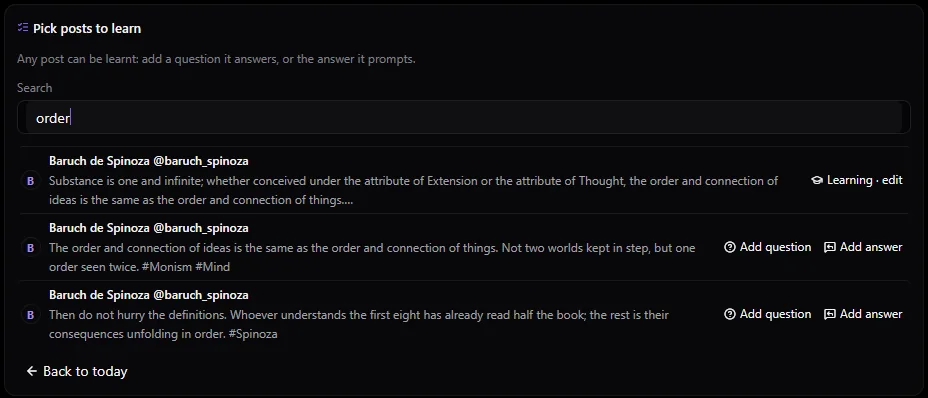
Pick posts to learn lists the active network's posts, newest first (instant reposts left out), up to 80 rows at a time. Type in Search to keep only posts holding every word you type, in their text, author name or handle; "No post matches." says when none do.
Each row offers Add question and Add answer, or Learning · edit when the post already has an item. The tab you opened it from stays lit, and the back button returns there (Back to today, Back to Learn, Back to statistics or Back to items). Rows show posts as plain text, without markup or links to other posts.
Problems the sheet reports
| Message | Fix |
|---|---|
| Write the question first. | Fill Your question. |
| Write the answer first. | Fill Your answer. |
| Pick a passage first. | Choose a sentence or paragraph of the document. |
Tips and limits
- Editing an item rewrites its faces and tags but keeps its schedule and history.
- Words of a post's translation can be sent to review too: each becomes an item on that post, tagged
vocabularyand with its language, the post being the answer. Set the language in Settings › Learning › Language I am learning. - The tutor can also make items from the gaps of a dialogue, anchored to its source.