 Simulacra
Goals and the weekly review
Set a learning goal with a target date, link what it is about, track measured progress, and plan each week.
A learning goal gathers the posts, sources, review items and concepts you want to master by a date. Its progress is measured from what you actually do (recall, writing, tutor dialogues and tasks), and a forecast says whether you are on track. The weekly review is a short ritual that looks back, looks ahead and turns the week's gaps into tasks of a goal.
Open it
On the Review page, click Learn, then Goals.

The goals list
The card header holds Weekly review and New goal. With no goals it reads: "No goals yet. A goal gathers the posts, sources, review items and concepts you want to master by a date."
Each goal card shows its title and why, a forecast badge, a track filled to its progress with a tick at the share of its time already spent, and a line such as "Target 2027-03-01 (42 d left) · 12 items · 85% retention · 3 new posts · 1/4 tasks". Click a card to open the goal.
| Forecast | Means |
|---|---|
| Reached | Progress is 95% or more, or you marked it reached |
| On track | Progress is within ten points of the time spent |
| At risk | Progress lags the time spent by more than ten points |
| Overdue | The target date passed before the goal was reached |
Create a goal
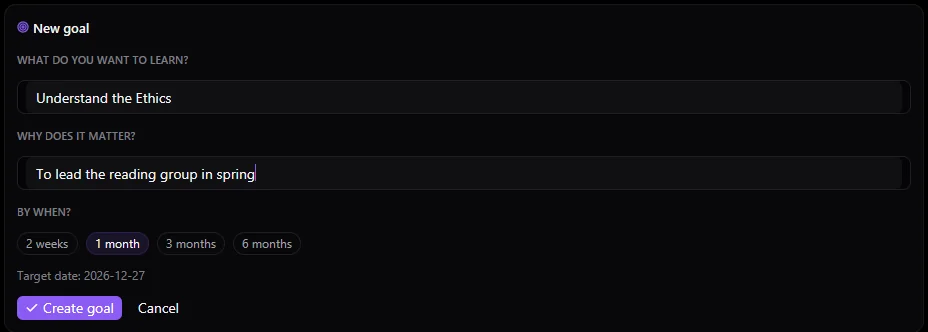
Say what and why
Fill What do you want to learn? ("For example: understand the Ethics") and, optionally, Why does it matter?.
Pick a horizon
Under By when?, choose 2 weeks, 1 month (the default), 3 months or 6 months. The line below shows the target date.
Create it
Click Create goal. The goal opens. Cancel goes back to the list.
A goal needs a title (Give the goal a title.) and a target after today (The target date must be in the future.). These show only after you click Create goal with something missing, not while you are still filling the form in.
A goal's detail
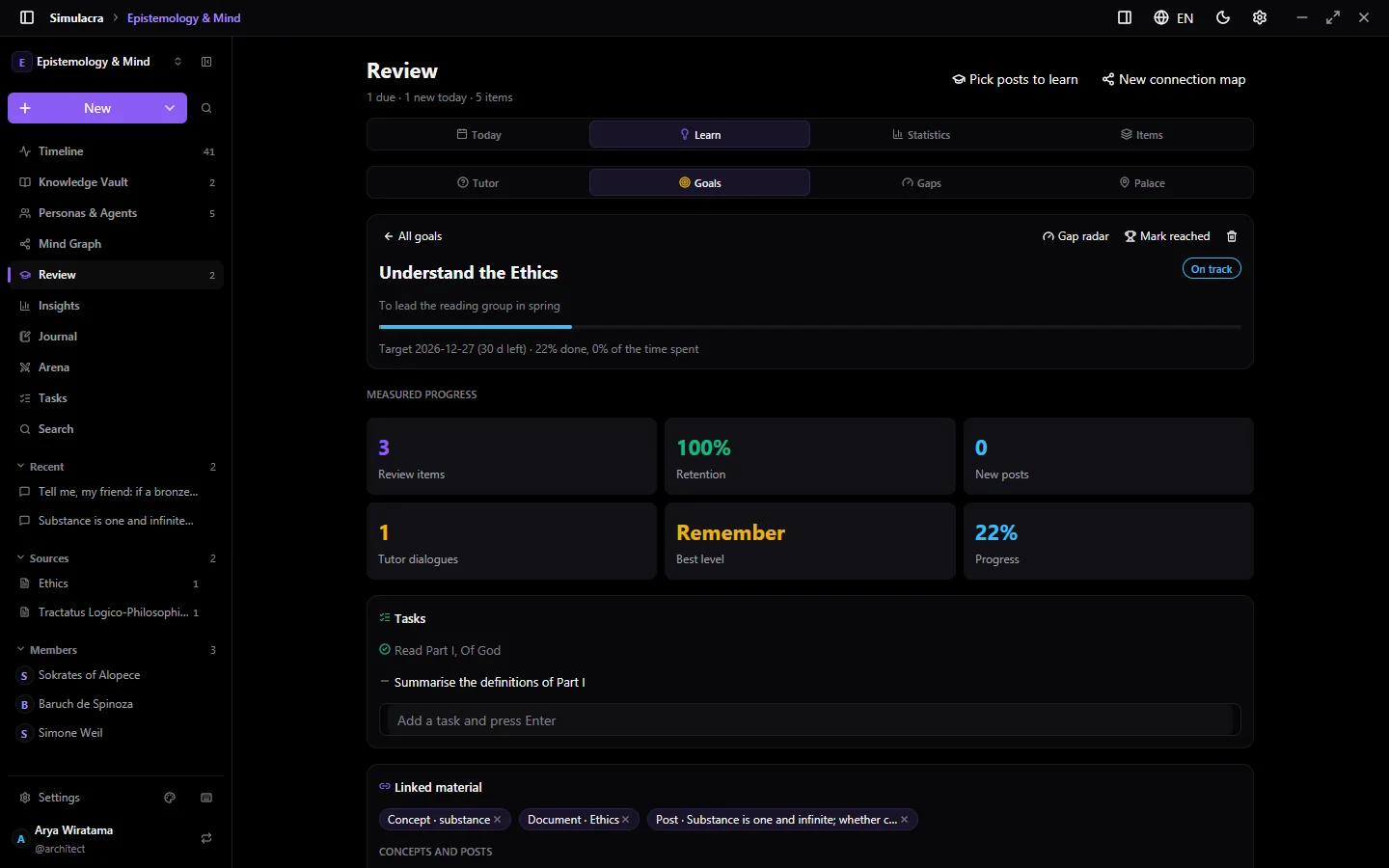
The head has All goals, Mark reached (or Reopen), Gap radar (the radar narrowed to this goal) and the bin (Delete this goal, at once and without asking). Under the title, a line such as "Target 2027-03-01 (42 d left) · 40% done, 55% of the time spent".
Measured progress
| Tile | Measures |
|---|---|
| Review items | Items that belong to the goal (see below) |
| Retention | Their mean chance of recall today |
| New posts | Your posts on the goal since it started |
| Tutor dialogues | Dialogues on the goal's material |
| Best level | The highest Bloom level those dialogues reached |
| Progress | The weighted score, coloured like the forecast |
Progress weighs memory 40% (how settled the items are: their mean stability against three weeks), tasks 30% (done out of all) and practice 30% (posts plus dialogues, six making it complete, and the best level reached). A part with nothing to measure, such as no tasks, is left out and the others share its weight.
An item belongs to the goal when you linked it, when it is anchored to a linked post, thread or document, or when it is tagged with or asks about one of the goal's concepts.
Tasks
Type in Add a task and press Enter. Click a task to tick or untick it. "No tasks yet: add one, or let the weekly review suggest some."
Linked material
The Linked material card shows a chip per link, such as "Post · Substance is one and infinite…", each removable. Add more:
| Section | How |
|---|---|
| Concepts and posts | Type a concept and press Enter, or click Link a post… and choose Link (the post) or Whole thread in the picker |
| Vault documents | Click a document chip (up to six are offered) |
| Review items | Search your items and click one to link it (up to eight rows show) |
The weekly review
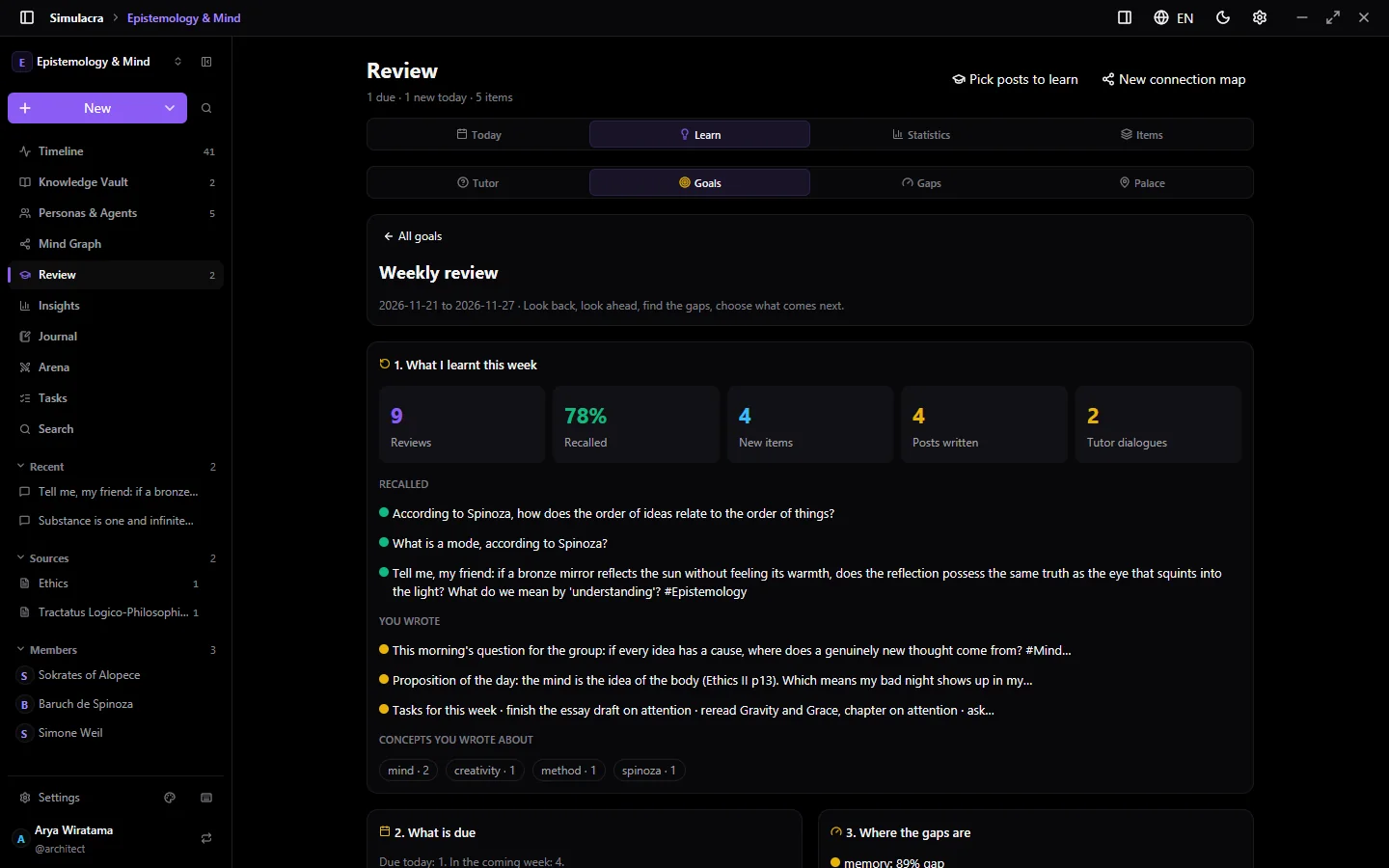
Open it with Weekly review on the goals list. It covers the last seven review days, today included, in four steps:
| Step | What it shows |
|---|---|
| 1. What I learnt this week | Tiles for Reviews, Recalled, New items, Posts written and Tutor dialogues; a few items recalled, posts you wrote and Concepts you wrote about. A week with neither reviews nor posts reads A quiet week: no reviews and no posts yet. |
| 2. What is due | "Due today: N. In the coming week: N." and Start review (N) |
| 3. Where the gaps are | The three weakest concepts ("free will: 62% gap") and Open the gap radar |
| 4. Next actions | Up to five suggested actions, all ticked |
The suggested actions are "Review the items due this week (N)", then one per weak concept chosen by its weakest dimension and varied so one kind does not repeat: "Talk through … with the tutor", "Write a post on …" or "Find a source on … for the vault".
Untick what you will not do
Click an action to untick or tick it.
Choose the goal
Under "Add the ticked actions as tasks of:", click a goal chip. The first open goal is chosen by default.
Add them
Click Add N tasks. Each ticked action becomes a task of that goal, worded as shown.
Without an open goal the step reads Create a goal first to keep these actions as tasks.
The weekly reminder
Turn on Settings › Learning › Weekly review reminder and choose the Weekly review day and the hour in Remind me at. On that day, at or after that hour, a notification says "Time for your weekly review: open Review, then Learn, then Goals."
Related
- Gap radar
- Socratic tutor
- Focus sessions can be linked to a goal by name